Dhani App Loot: Rs.100 Free + Lifetime Free Cashback Card Grab Now
×
Join Our Telegram Channel
×
☰ MENU

Showing posts with label Blogger. Show all posts

Sunday, 21 April 2019

What Is Google Adsense? How to Approve Adsense Fast To Earn Money From Your Blog Or Website

Posted By: Sandeep Kumar 2 Comments

In my previous post i posted a little about Adsense. In this post in will briefly describe about Adsense and how to approve it fast

What is Adsense?

Google Adsense is the Adnetwork developed by Google in 2003 that allows to serve text, image, video advertisements on blogs or websites that are targeted to site audience and site content. you might see different types of Ads like Banner ads, text ads and video Ads on different websites or blogs and written as Ads by google; yes these ads are from Google Adsense.

Many people use Google Adsense because it is 100% truested and high payout Adnetwork

Also Read: How To Verify Your Adsense Account By Pin

Types of Ads on Adsense?

There are different types of Ads available on Google Adsnese like Auto ads, banner ads, responsive ads, Anchor ads, link ads with different sizes


How google Adsense pays to his Customers?

You can earn moeny by placing google Adsense Ads on your websites or blogs. Google adsense is giving money for impression on Ads or click on Ads by site visitors. You can redeem your earning to your bank account. After you reach $100 you can redeem your earning to your bank account

Also Read: How To Create A Free Blog Or Website

What should to do before Apply Adsense?

Adsense is known for his strict rule and policy. Your blog or website must be follow the below qualities to be eligilble for Google Adsense

1. As per the Google Adsense policy; your blog must have 6 months old before you apply for Adsense. But that does not matter even your blog is 6 months old or 2 months old. Many people in India got approved Adsense even 2 months old blog. Its depends upon the quality content post on your blog.

2. Make 15-20 good quality content posts before apply Adsense

3. Many blog owner are applying for Adsense without having About us, contact us, privacy policy and Terms of use pages. Thatswhy their Adsens account disapproved at once. You must have these pages as i mentioned aove before apply for Adsense

4. Your blog should have simple design and fast loading

5. Your blog must have quality content posts

6. Your blog should have good navigation to all your posts or pages

7. Your blog should not have any copyright content/ posts/ materials

8. Don't use any other Adnetwork Ads; if you have then remove these Ads before apply for Adsense.

9. Try to get some traffic to your blog using socialmedia before apply for Adsense. But the number of traffic have not specified. It may be 1000-2000 traffic.

10. Your blog should be good looking and don't have any gramatical error posts

If you have all these qualities on your blog as i mentioned above; then your Adsense will be approved soon

Also Read: How To Earn Money From Your Blog

How to Apply For Adsense?

1. First login to Blogger Or if you have any other platform like Wordpress or Wibbly then visit Adsense

2. In blogger you can directly apply it by going on Earning option

3. Blogger Blogspot users now goto Earning option. Now tap on Signup for Adsense. If you have website on wordpress then click on Signup Now after visiting Adsense website

4. On the next page enter all your details carefully and proceed to signup

5. Your request will be approved in 7-12 days after Adsense team properly reviewed your website or blog

6. You will be notified to your registered email about your request

7. Generally it takes 7-12 days to get approve Adsense; if you won't get any email from Adsense team about your confirmation or you got any email about your Adsense disapproved; then try to resolve your error on your blog and try apply it again and again

Don't worry! if your blog or website have all the qualities that i mentioned in this post; then you will get Adsense approve in 7-12 days

Read More »

Sunday, 24 March 2019

How To Add Responsive Social Media Share Buttons To Blogger Blogspot

Posted By: Sandeep Kumar

In this post i will tell you how to add Responsive Social media share buttons to Blogger Blogspot. Do you have any Blog and want to add share buttons to your Blog; then you are in the right place. Social sites are the best place to get more traffic to any Blog or webistes. The most popular social media's like Facebook and Whatsapp can make your Blog popular within short period of time. So not taking too much time i am telling about these share buttons.

These share buttons are fully Responsive. In smaller screen like Mobile platform these share buttons are shown as smaller icons and in bigger screen like Tables and PC's these are shown as Larger icons. These share buttons are fast loading and not takes too much time to load your page. I have added share buttons like Facebook, Google+, Twitter, Pinterest and Whatsapp. You can add these share buttons below post title or post footer. So follow the below steps to add these share buttons to your Blog.

Also Read: How to add social media share buttons to blogger (Rounded Buttons)

Also Read: How to add custom social share buttons to blogger posts

Steps to add Responsive share buttons to Blogger:-

(Before editing codes first take a backup of your theme. Because if you will do any mistake then you can restore it)

1. First login to Blogger, then goto Theme option

2. Now proceed to Backup/Restore on top of the page & download your file.

3. Now tap on Edit Html.

4. Inside the code area press for Ctrl+F key. You will get a search box.

5. Now enter <head> in search box and search it.

6. Then copy & paste the below codes below the <head> tag. (If you already have these codes in your theme then don't add this)

<link href='https://maxcdn.bootstrapcdn.com/font-awesome/4.7.0/css/font-awesome.min.css' rel='stylesheet'/>

7. Now search for </head> & copy and paste the below CSS codes above the </head> tag.

CSS codes:-

8. I have provided two ways to add these share buttons to your blog.

Also Read: How to add Facebook like and share buttons to blogger

If you want to Add these share buttons below your post title then follow the below steps:-

Add share buttons below post title:

Now search for this code <div class='post-header-line-1'/> & copy and paste the below Html codes(Part-1) below the above codes. Again search for the above codes and copy and paste the Html codes(Part-2) below the codes.

If you want to add these share buttons after your post end then follow the below steps to add these share buttons below your post footer.


Add share buttons below post footer:

Now search for this code <div class='post-footer'> and copy and paste the Html codes(Part-1) below the above codes. Again search for the above codes and copy and paste the Html codes(Part-2) below the above codes.

If you cannot find these codes in your theme then search for this code <div class='post-footer-line post-footer-line-1'> and copy and paste the Html codes(Part-1) below the above codes. Again search for the above code line and copy and paste the Html codes(Part-2) below the above codes.

Html Codes(Part-1):-


Html Codes(Part-2):-

9. Now goto Html part codes; that you have added in your theme and add your twitter username in place of my twitter username @sandeep980blog

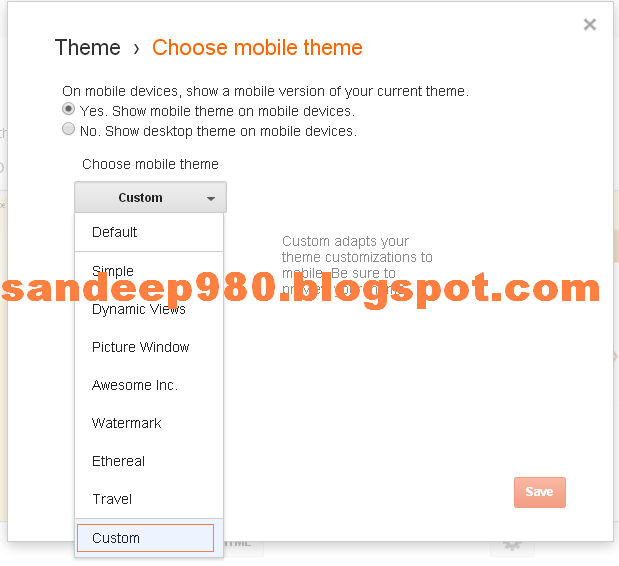
10. Then save your theme. Now Goto mobile theme and choose custom mobile theme in the drop down menu and save it. Now visit your blog & see how's it looking.

Read More »

Friday, 1 March 2019

How to add custom social share buttons to blogger posts

Posted By: Sandeep Kumar 11 Comments

Hello friends in this post i am going to tell you how to add custom social media share buttons to blogger posts. In my previous post i had mentioned How to add social media Rounded share button to blogger post. Almost every website or blog getting popular because of the socialmedia. Socialmedia has the ability to send more traffic to websites or blogs. The biggest and popular socialmedia's like facebook & whatsapp plays major role to get more traffic. If you have any blog & want to add socialmedia share buttons; then i have provided simple steps; just follow these steps and add these share buttons to your blog.

In this article i will tell you how to add large share buttons to blogger blogspot. I have already added these share buttons in my blog; you can check it for a demo. I have added share buttons like facebook, twitter, google plus, Pin & whatsapp. If you want more share buttons then suggest me i will add more share buttons. I have provided below Html & Css codes. Just add these codes carefully. So follow the below steps to add these share buttons to your blog.

Also Read: How to add Facebook like and share buttons to blogger

Also Read:- How to add social media Rounded share button to blogger post

Steps to add custom social share buttons to blogger posts:-

(Before editing codes first take a backup of your theme. Because if you will do any mistake then you can restore it)

1. First login to Blogger, then goto Theme.

2. Now tap on Backup/Restore & download your file.

3. Now proceed to Edit Html.

4. Inside the code area press for Ctrl+F key. You will get a search box.

5. Now enter <head> in search box and search it.

6. Then copy & paste the below codes below the <head> tag. (If you already have these codes in your theme then don't add this)

<link href='https://maxcdn.bootstrapcdn.com/font-awesome/4.7.0/css/font-awesome.min.css' rel='stylesheet'/>

7. Now search for </head> & copy and paste the below CSS codes above the </head> tag.

CSS codes:-

8. I have provided two ways to add these share buttons to your blog.

If you want to Add these share buttons below your post title then follow the below steps:-

Add share buttons below post title:

Now search for this code <div class='post-header-line-1'/> & copy and paste the HTML Part codes below the above codes. Again search for the codes if you find these codes again; then copy and paste the HTML Part codes below the codes.

If you want to add these share buttons below your posts then follow the below steps to add these share buttons below your post footer.

Add share buttons below post footer:

Now search for this code <div class='post-footer'> and copy and paste the Html codes below the above codes. Again search for the above code; if you find again the copy and paste the Html codes again below the above codes.

If you cannot find these codes in your theme then search for this code <div class='post-footer-line post-footer-line-1'> and copy and paste the Html codes below the codes. Again search for the above code; if you find these code line again; then copy and paste the Html codes below the above codes.

HTML Part Codes:-

9. Now goto Html part codes; that you have added in your theme and add your twitter name in place of my twitter user name @sandeep980blog

10. Then save your theme. Now Goto mobile theme and choose custom mobile theme in the drop down menu and save it. Now visit your blog & see how's it looking.

Read More »

Tuesday, 26 February 2019

How To Verify Your Adsense Account By Pin

Posted By: Sandeep Kumar

Hello friends hope you enjoyed my previous Adsense post. In my previous post i posted What is Adsense and how to approve Adsense fast to earn money from your blog or websites. In this post i will tell you how to verfiy your Adsense account by Pin. As per the Adsense policy you must verfiy your account to use Adsense.

Yes Adsense rule is very strict. You must to follow the Adsense policy nor your account will be disapproved. After your Adsense earning reached $10; Adsense will verify your account. Yes they want to verify your address. When your Adsense earning reached $10; Adsense will send you a pin via post to your registered Address. You need to enter the pin to verify your account. You will get an email to your email address when Adsense team will send you the pin to your address

Also Read: What Is Google Adsense? How to Approve Adsense Fast To Earn Money From Your Blog or website

How to verify your Adsense account by entering Pin?

1. After your earning reached $10; Adsense team will send an email with a pin via post to your registered address

2. First visit to your Adsense account

3. On the Homepage of Adsense you can see a message about verify your account by pin

4. Just enter the pin that you have received via post and verify.
(Be careful! If you enter the pin 3 times incorrectly then your adsense account will be disapproved permanently)

5. Done! now you have successfully verify your account

Generally it takes 3-7 days to receive the pin via post

Read More »

Friday, 22 February 2019

How to add social media share buttons to blogger (Rounded Buttons)

Posted By: Sandeep Kumar 30 Comments

Hello friends in this post i am going to tell you how to add social media share buttons to blogger blogspot. Almost every website or blog getting popular because of the social media. Social media has the ability to send more traffic to websites or blogs. The biggest and popular social media's like facebook & whatsapp plays major role to get more traffic. If you have any blog & want to add socialmedia share buttons; then i have provided simple steps; just follow these steps and add these share buttons to your blog.

In this article i will tell you how to add rounded share buttons to blogger blogspot. I have already added these share buttons in my blog; you can check it for a demo. I have added share buttons like facebook, twitter, google plus, Pin & whatsapp. If you want more share buttons then suggest me i will add more share buttons. I have provided below Html & Css codes. Just add these codes carefully. So follow the below steps to add these share buttons to your blog.

Also Read:- Steps to add custom social share buttons to blogger posts

Steps to add rounded share buttons to blogger:-

(Before editing codes first take a backup of your theme. Because if you will do any mistake then you can restore it)

1. First login to Blogger, then goto Theme.

2. Now proceed to Backup/Restore & download your file.

3. Now tap on Edit Html.

4. Inside the code area press for Ctrl+F key. You will get a search box.

5. Now enter <head> in search box and search it.

6. Then copy & paste the below codes below the <head> tag. (If you already have these codes in your theme then don't add this)

<link href='https://maxcdn.bootstrapcdn.com/font-awesome/4.7.0/css/font-awesome.min.css' rel='stylesheet'/>

7. Now search for </head> & copy and paste the below CSS codes above the </head> tag.

CSS Part codes:-

8. I have provided two ways to add these share buttons to your blog.

If you want to Add these share buttons below your post title then follow the below steps:-

Add share buttons below post title:

Now search for this code <div class='post-header-line-1'/> & copy and paste the below html codes below the above codes. Again search for the codes if you find these codes again; then copy and paste the Html codes below the codes.

If you want to add these share buttons after your post end then follow the below steps to add these share buttons below your post footer.

Also Read: What Is Google Adsense? How to Approve Adsense Fast To Earn Money From Your Blog or website

Add share buttons below post footer:

Now search for this code <div class='post-footer'> and copy and paste the Html codes below the above codes. Again search for the above code; if you find again the copy and paste the Html codes again below the above codes.

If you cannot find these codes in your theme then search for this code <div class='post-footer-line post-footer-line-1'> and copy and paste the Html codes below the codes. Again search for the above code; if you find these code line again; then copy and paste the Html codes below the above codes.

Html Codes:-

9. Now goto Html part codes; that you have added in your theme and add your twitter name in place of my twitter user name @sandeep980blog

10. Then save your theme. Now Goto mobile theme and choose custom mobile theme in the drop down menu and save it. Now visit your blog & see how's it looking.

Read More »

Wednesday, 9 January 2019

How to add Facebook like and share buttons to blogger

Posted By: Sandeep Kumar 5 Comments

In this post i am going to tell you how to add facebook like and share buttons widget to blogger blogspot. The most popular socialmedia platform facebook has billion active users. If you want to viral your blog or blog post then its the best way to get more traffic. If someone like or share your post then your post will reach to those people who have connected to that people. Your post will viral within short period of time.

Firstly you need to add the facebook like & share widget to your blog. You can get this widget from facebook; afterthat you have to setup this widget to your blog. Its pretty simple and easy. Below i have mentioned easy way to get this widget. So follow the below steps to add these widget to your blog.

Also Read:- How to add social media share buttons to blogger (Rounded buttons)

Steps to get Facebook like and share button codes:-

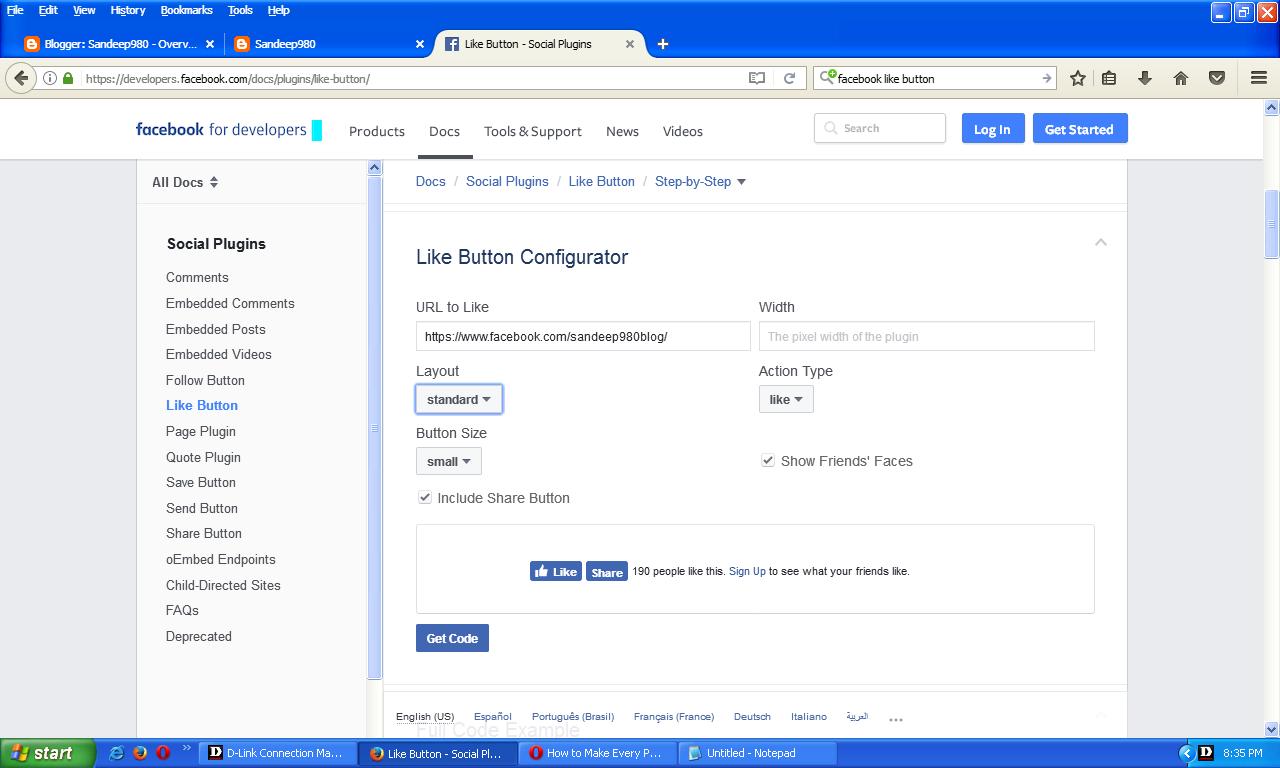
1. Firstly visit Facebook Developers Page

2. Then scroll the page a little; you will get like Button Configurator

3. Now enter your facebook page url

4. Then choose Layout, button size. If you want share button then check on Include share button.

5. You will get preview of this widget on this box. Now proceed to get code

6. A popup window will open, then goto Iframe tab and copy your codes.

Now you need to setup this widget on your blog.

Steps to Add this widget to your Blog:-

1. Open Blogger and goto Layout.

2. Now proceed to Add a gadget and tap on Html/Javascript

3. Now paste your codes that you have copied from facebook developer page.

4. Then save your code. Now visit your blog you can see this widget.

Read More »

Wednesday, 30 May 2018

How To Earn Money From Your Blog

Posted By: Sandeep Kumar 6 Comments

In my previous post i mentioned how to create a free Blog on Blogger Blogspot. If you wish to earn money from your blog then you can earn massive amount of money. Most of the people earn huge amount of money from their blogs. Yes you can use Adsense to earn money from your blog. In blogger you can approve Adsense fast.

There are many Adnetworks are available as Google Adsense alternative but Adsense is 100% trusted and high payout Adnetwork. Adsense shows Ads on Blogs or websites and you can earn from these Ads. Adsense is giving money for impression on Ads or click on Ads. To get Adsense on your blog you need to apply it; after it approved you can use it in your blog.

There are different types of Ads on Adsense that you can show on your blog like Auto Ads, Banner Ads, Responsive Ads, text Ads, Page-level Ads and Anchor Ads and many more. You can earn huge amount of money from these Ads. In my next post, i will describe it briefly What is Adsense and How to approve it fast and what should to do before applying Adsense.

Read More »

Tuesday, 29 May 2018

How To Create A Free Blog Or Website

Posted By: Sandeep Kumar

Do you want to create a free Blog or Website? If yes then you are in the right place. In this post i will tell you how to create a free Blog. Many people choose Blogger Blogspot; because it is free. Ok i will tell you how to create free Blog on Blogger Blogspot. It is 100% free and easy to use and Blogger does not take any charges for it. The Blogger was developed by Pyra Labs after that it was bought by Google in 2013. And the blogs are hosted by google with sub-domain of blogspot.com. Yes now its a google product.

After creating your blog you will get your sub-domain something like this xyz.blogspot.com. If you want a domain for your blog then you can buy it from Godaddy and different websites are available where you can buy domain. Blogger does not take any charges for web hosting. If you want to earn money from your blog by using Google Adesense then blogger is the best way to get Adsense approve fast. While in other websites like Wordpress, Wibly, Zohosites; its too difficulty to get Adsense approved. In my next post i will tell you What is Adsense how to ean money by using Adsense on your blog.

Also Read: How To Earn Money From Your Blog

Also Read: What Is Google Adsense? How to Approve Adsense Fast To Earn Money From Your Blog or website

How to create a free blog?

1. First visit https://www.blogger.com/

2. If you have any Gmail or Google account then just signin on blogger

3. Now you can use Blogger as Google+ profile or Blogger profile. Choose any one profile

4. Then you will redirect to the dashboard of Blogger and there you can see a option like create New Blog

5. Now give your Blog title and choose your Blog Address

6. Then pick any one theme for you blog

7. Now you have succeed to create your free blog. Also you can create mulitple blogs in one account

Also Read: How To Verify Your Adsense Account By Pin

How to create your first post on blogger?

1. Now proceed to New post 0n top of the page and write something whatever you want to post

2. If you know coding like html, css, javascript then write your code by going to HTML Tab

3. If you don't have any knowledge of coding then move to compose tab and write your post. There are different options are available like you can add images, add color, add videos and links etc

4. After complete your post; publish it

5. If you want to visit your Blog then proceed to View Blog; you will redirect to your Blog

Blogger is the best and free platform to create blog. Also you can check your post stats or traffic, post comments and you can choose different types of themes

Read More »

About Blog Founder:

SANDEEP KUMAR is the Admin of this Blog - OffersTricks. He is a Part-Time Blogger. His area of interests are Web Designing, Free Recharge Tricks, Paytm Cash Tricks, Online Money Earning Tricks and always eager to learn new things.


Follow Us-


This Blog is Designed by Sandeep Kumar- OffersTricks © Copyright 2017 - 2023
About Us | Sitemap | Contact Us | Privacy Policy | Terms Of Use